Volume Bass Booster, Equalizer
- 4.7
- Rating
- 10.00M
- Installs
- Free
- Price
 Analysis by App-foxy
I installed Volume Bass Booster, Equalizer to see whether it could make everyday listening more enjoyable without turning my phone into a complicated audio workstation. My first impression was that it is aimed at people who want a quick, noticeable change: more low-end weight, a stronger overall output, or a simple way to adjust the sound coming from an Android phone or connected speaker. It belongs to the Music & Audio category, is free to install, and is developed by ZANKHANA PTE LTD.
The app has a very clear appeal. If music sounds thin through a small phone speaker, or a podcast is difficult to hear while doing chores, a bass and volume control can feel more useful than opening a full music-production tool. At the same time, audio enhancement is not magic. The result depends heavily on the phone, speaker, headphones, media app, and listening volume. My experience was best when I treated the controls as a way to make small, deliberate adjustments rather than as a button for unlimited loudness.
Where the listening experience can get stuck
The most common frustration with an audio booster is that the user expects one setting to work equally well everywhere. In practice, a change that sounds pleasant through wired headphones may make a phone speaker rattle, while a bass-heavy setting that suits electronic music can make spoken audio muddy. This is the first important point with Volume Bass Booster, Equalizer: the app can influence the sound, but it cannot repair a weak speaker, damaged headphones, a poor recording, or a connection that is already unstable.
You May Also Like

 Blood Strike: 2.5 Anniversary
Blood Strike’s Loadouts Turn Every Drop Into a Tactical Gamble
A close look at Blood Strike’s custom loadouts: how fast access to signature weapons reshapes its battle royale rhythm, rewards preparation, and narrows the gap between fights.

 Pandora - Music & Podcasts
Pandora’s Music Is Easy to Start, but Harder to Recover
Pandora’s strength is its low-effort path from a seed to a station. Its weak spot is how much confidence it asks you to place in connection, setup, and quiet recovery.

 8 Ball Pool
 Is Built on Rivalries, Rematches, and Routine
A close look at the rivalries, rematches, shared routines, and unanswered safety questions that turn a quick pool match into a persistent mobile community.

 Samsung Music
’s Quiet Strength Is Playing What You Already Own
Its reach comes less from spectacle than from dependable access to a personal library. That simplicity is both the app’s strongest retention engine and its ceiling.

 AccuWeather: Weather Radar
AccuWeather Review: A Quick, Clear Forecast for Everyday Decisions
For everyday plans, the best forecast is the one you can understand quickly. AccuWeather makes rain timing, radar, and local conditions easy to act on, with a few trade-offs.

 Hill Climb Racing
Why Hill Climb Racing Still Turns Crashes Into One More Run
A tiny car, a bumpy hill and one more upgrade: Hill Climb Racing keeps resurfacing because its simple chaos makes every near-miss feel personal.
More From Our News Desk
View All News


I found it helpful to begin with a familiar track rather than an unfamiliar recording. A song with a steady vocal, a clear kick drum, and quieter sections makes it easier to notice whether the adjustment is genuinely improving the sound. If I started with a heavily mastered track, I could mistake extra loudness for better detail. That distinction matters because pushing the volume too far can make the sound harsher even when it initially seems more powerful.
The bass control also needs restraint. Small phone speakers have limited ability to reproduce deep low frequencies, so increasing bass may create the impression of warmth without producing much additional detail. On some devices, the result is simply a less clear midrange. I preferred raising the low end gradually, then reducing it as soon as vocals began to lose their shape. For spoken content, I usually favored clarity over impact and kept any bass change modest.
Another point that can confuse new users is the difference between an app-level change and a hardware-level limitation. If headphones are quiet because their own controls are low, or if a Bluetooth speaker is already applying its own sound profile, a second layer of boosting may not behave as expected. I would check the physical or system volume first, then make one adjustment at a time inside the app. That makes it much easier to identify what actually helped.
The safest useful habit is to change one control, listen for a few seconds, and stop when the sound becomes clearer rather than merely louder. This sounds simple, but it prevents the most common setup mistake: moving every slider at once and then having no idea which adjustment caused distortion or imbalance.
What I check before blaming the booster
When the effect seemed weak, I first checked whether the selected output was the one I intended to use. Android phones can switch between the built-in speaker, wired headphones, Bluetooth earbuds, and a connected speaker. If the output changes while the app is open, the result may appear inconsistent even though the controls have not changed. I also paused and resumed the media, because some players do not immediately refresh audio processing after a connection change.
I then compared the sound with the app adjustment enabled and disabled at the same listening level. This is important because a louder signal often sounds better in a quick comparison. Matching the volume as closely as possible gives a more honest impression of whether the equalization is adding useful character or simply increasing intensity.
For Bluetooth listening, I would keep the phone and speaker close during testing and wait for the connection to settle. A weak or interrupted wireless link can sound like a processing problem. If the sound cuts out, becomes delayed, or changes suddenly, I would test the same device with the booster inactive before changing more audio settings.
Setup checks that make the first session easier
Volume Bass Booster, Equalizer is free, so it is easy to try without committing to a purchase. The app is suitable for Everyone and supports Android six point zero or later, which covers a broad range of phones. Its current version is 1.0.9. I would still approach the first launch patiently, because the most useful setup is not necessarily the one with the strongest effect.
I began with the phone’s normal media volume at a comfortable level, not at its maximum. Then I played the same short section of audio while making a single small adjustment. This gave me a reference point and reduced the chance of confusing clipping with bass enhancement. If you are setting it up for a family member who mainly listens to radio or spoken content, I would use speech as the test material instead of music.
The app is best understood as a listening adjustment tool, not a replacement for the controls built into every other audio product. Many music players already include their own equalizer or sound presets. If both systems are active, their changes can stack. That can be useful when you know exactly what each layer is doing, but it can also produce an exaggerated or uneven result. My preferred workflow was to leave the music player’s sound profile neutral first, adjust this app, and only then decide whether another layer was truly necessary.
Headphones deserve their own check. Some earbuds already emphasize bass, while others sound bright and lightweight. A setting that makes inexpensive earbuds feel fuller may be too heavy on a bass-oriented headset. I would test both a song and a voice recording, because a setting that survives both types of content is more practical than one that only impresses during a dramatic chorus.
The same principle applies to the phone speaker. A small speaker can benefit from a little extra presence, but extreme bass changes usually have less value there than a controlled volume increase. If the speaker begins to buzz, crackle, or sound compressed, I would lower the adjustment immediately. That is not a sign that the app has failed; it is a sign that the physical speaker has reached its comfortable limit.
In-app purchases range from $2.99 to $11.99 per item. Since the basic app is free, I would spend time learning whether its core controls fit my phone before considering any optional purchase. The practical question is not whether a stronger setting exists, but whether the sound remains comfortable and useful during normal listening.
A realistic everyday setup
Imagine using a phone in the kitchen while cooking. The built-in speaker may be difficult to hear over water, ventilation, and movement around the room. I would place the phone safely away from splashes, start a familiar podcast, and raise the output only enough to make speech understandable. If voices still sound thin, I would add a small amount of low-end adjustment, then listen for consonants and word endings. If those become blurred, I would reverse the last change.
For music during the same routine, I might use a slightly fuller profile, but I would not chase the sound of a large speaker. The phone’s position also matters: placing it on a hard, stable surface can change the perceived loudness and body more than another aggressive slider movement. This is one of the less obvious lessons I took from testing the app. Before increasing processing, improve the listening position and confirm that the phone is not being muffled by fabric or a soft surface.
For late-night listening, the app is less attractive as a volume solution. Headphones at a lower comfortable level are usually a better choice than forcing a phone speaker to project more sound. If you need precise, repeatable profiles for several headphones, a dedicated player with saved presets may be more suitable. This app is more convenient for quick adjustments than for managing a detailed library of audio configurations.
Recovering when the workflow stops behaving
When the sound changed unexpectedly, I used a simple recovery sequence. First, I stopped the media and returned the app’s adjustment closer to its starting position. Next, I checked the phone’s output and system volume, then resumed playback. If the result was still unusual, I tested another song or a voice recording. This separates a problem with one file or streaming source from a broader issue with the audio path.
If a connected speaker or headset was involved, I disconnected and reconnected it before making further changes. Bluetooth devices can retain their own volume state, and the phone may display a level that does not tell the whole story. Testing the built-in speaker afterward provides a useful comparison. If the built-in speaker sounds normal while the external device does not, I would investigate the connection or the accessory rather than continually increasing the booster.
Another useful recovery method is to avoid rapid slider movements. I found that gradual changes made it easier to hear the point where sound stopped improving. If I moved quickly from a neutral position to an extreme one, the first impression was exciting but not necessarily usable. Returning to a moderate setting and listening through a full verse or a minute of speech gave a more reliable result.
It is also worth checking whether another audio feature is active at the same time. A phone’s built-in sound enhancement, a music player equalizer, and a Bluetooth speaker’s own profile can all influence the final result. I would temporarily simplify the chain to one adjustment layer, test it, and then add anything else only if there is a clear reason. This is a practical way to recover from a muddy sound without guessing.
For a person who switches between several outputs during the day, I would keep expectations realistic. A setting that works for earbuds may not transfer well to the phone speaker. Rather than searching for one perfect configuration, I would use a conservative everyday adjustment and make small changes when changing hardware. The app is quicker to use when treated as a flexible control than when treated as a permanent preset manager.
When the app is not the cause
There are several situations where a booster cannot solve the underlying problem. If one side of a headset is silent, if a cable crackles when moved, or if a speaker distorts even at ordinary volume, the hardware deserves attention first. Increasing the output can make those symptoms more noticeable and may make listening less comfortable.
Streaming quality can matter too. A compressed or poorly recorded track may have harsh treble, weak bass, or limited detail before any processing is applied. An equalizer can change the balance, but it cannot restore information that is not present in the recording. I preferred using the app to make good material fit my device better, not to disguise a bad source.
Battery and device temperature are also sensible reasons to be cautious with prolonged loud listening. I would not leave a phone playing at maximum output in a confined space or place it under bedding while using it. These are general listening precautions rather than special requirements of the app, but they matter whenever someone is trying to compensate for a quiet environment by adding more volume.
Compared with the equalizer built into a music player, this app is more convenient when I want an adjustment that is not tied to one library or one playback screen. Compared with a dedicated audio player, it is less appealing for advanced listeners who need detailed bands, carefully saved profiles, or precise control over different headphones. Compared with a hardware speaker upgrade, it is inexpensive and immediate, but it cannot create the physical depth or headroom of a larger speaker.
That comparison helps define its audience. I would recommend it to someone who wants a straightforward way to make a phone or speaker sound fuller and who is willing to listen critically while adjusting it. I would skip it if my main goal were studio-style mixing, exact headphone calibration, or repairing a faulty audio device. In those cases, a specialized player, a device-specific equalizer, or new hardware would be the better answer.
My practical verdict after using it
Volume Bass Booster, Equalizer succeeds when the problem is small and practical: music feels too thin, speech needs a little more presence, or a connected speaker would benefit from a careful tonal adjustment. Its free entry point makes experimentation easy, and the large user base—over ten million installs, with a 4.8 average from around forty-eight thousand ratings and roughly two thousand two hundred reviews—suggests that its straightforward purpose resonates with many Android listeners.
I would not describe it as a universal fix. The best results came from moderate changes, a stable audio connection, and checking the output device before touching the controls. The weakest results came from trying to force deep bass from a small speaker or stacking several sound enhancements without a reference track. Those limitations are important because they determine whether the app feels useful or merely loud.
For me, the strongest use case is casual daily listening: a podcast during housework, music from a phone speaker, or a quick adjustment for headphones that sound slightly unbalanced. The app is especially approachable for someone who does not want to learn a complicated audio system. I would advise new users to begin quietly, compare enabled and disabled sound at the same level, and make changes based on clarity rather than excitement.
My final recommendation is positive but measured. If you want a free Music & Audio app for quick bass, equalizer, and volume adjustments on Android, this is worth trying. Keep the settings conservative, remember that your hardware sets the real limits, and do not mistake extra loudness for improved quality. Used that way, it is a handy everyday listening companion rather than an overpromising replacement for better headphones, a better speaker, or a more advanced audio player.
FAQs for Volume Bass Booster, Equalizer
01What features does the Volume Bass Booster, Equalizer app offer?
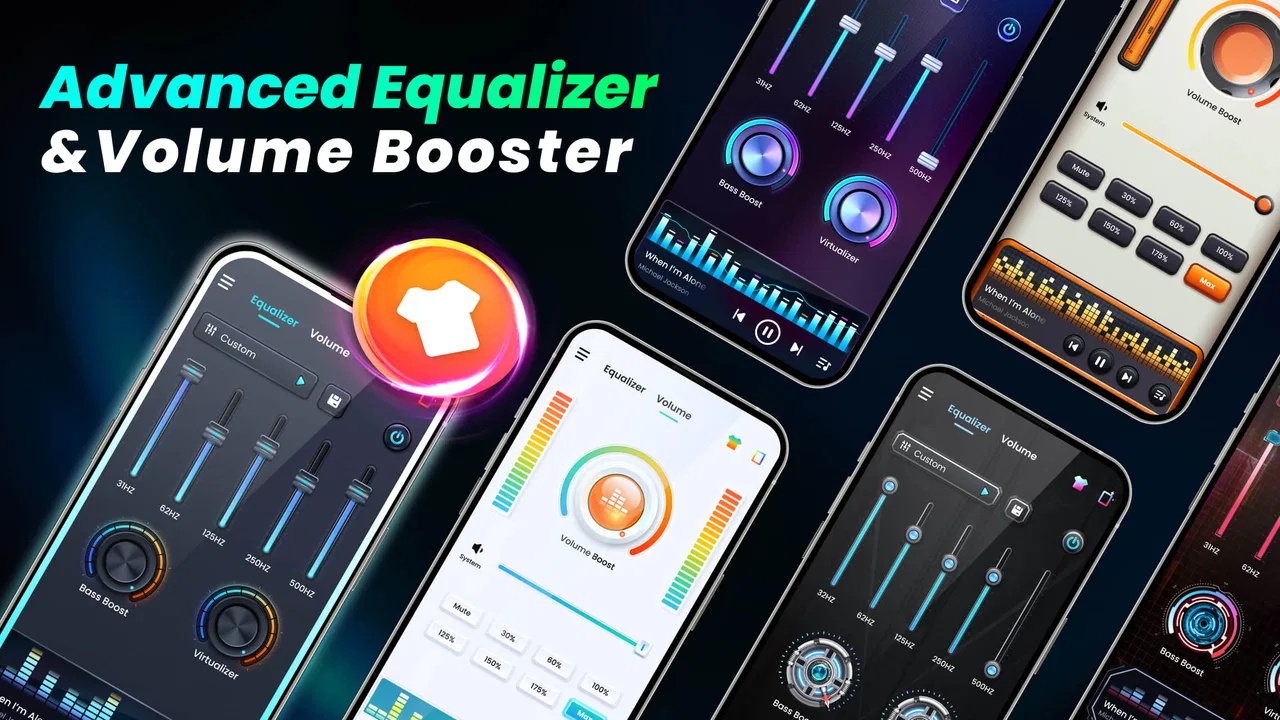
The Volume Bass Booster, Equalizer app provides a range of features designed to enhance your listening experience. These include customizable equalizer settings, various preset sound profiles, a bass boost function, and a virtualizer to create a 3D surround sound effect. Additionally, users can save custom settings for different audio outputs.
02Is the Volume Bass Booster, Equalizer app compatible with all audio formats?
The app supports most popular audio formats, ensuring a seamless listening experience across various music files. However, it may not fully support certain proprietary or less common formats. Users should check the app’s compatibility with their specific audio files beforehand to ensure optimal functionality.
03Does using the Volume Bass Booster, Equalizer app affect battery life?
Yes, using the Volume Bass Booster, Equalizer app can impact battery life, especially if the app is running continuously in the background. The extent of battery usage depends on the intensity of the settings and the duration of use. It's recommended to moderate the usage for extended battery performance.
04Is the Volume Bass Booster, Equalizer app free to use?
The app offers both a free version and a premium version. The free version includes basic features, while the premium version unlocks additional features such as more presets, an ad-free experience, and advanced customization options. Users can choose based on their needs and preferences.
05How easy is it to customize settings in the Volume Bass Booster, Equalizer app?
Customizing settings in the app is quite user-friendly, with an intuitive interface that allows users to easily adjust the equalizer bands and apply various sound profiles. The app also provides guides and tips to help users optimize their settings for different audio environments.
Pros
- Enhances audio quality significantly.
- User-friendly interface for easy use.
- Customizable equalizer settings.
- Compatible with various audio formats.
- Boosts sound without distortion.
Cons
- May drain battery faster.
- Ads can be intrusive at times.
- Limited features in free version.
- Requires permission access to media.
- Some features need internet connection.

Volume Bass Booster, Equalizer
Gallery